





Installing the Software
Blog | EmbroideryStudio
November 8th, 2019
2 minute read
Installing Embroidery Studio 4
The key to a clean and stress free installation of your software is to take your time and follow the instructions presented on the screen during the installation process.
As of July 2019 and the release of version 4.2 J you will need a 64 bit operating system.
This complete rewrite of the software will allow the software to use the full power of your computer.
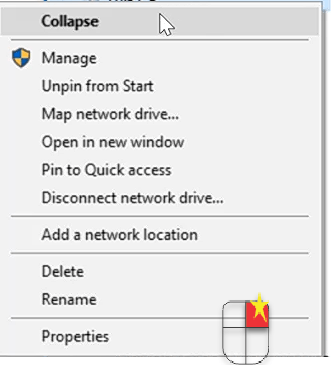
So the question is how do I find if my PC or Laptop is 64 bit?

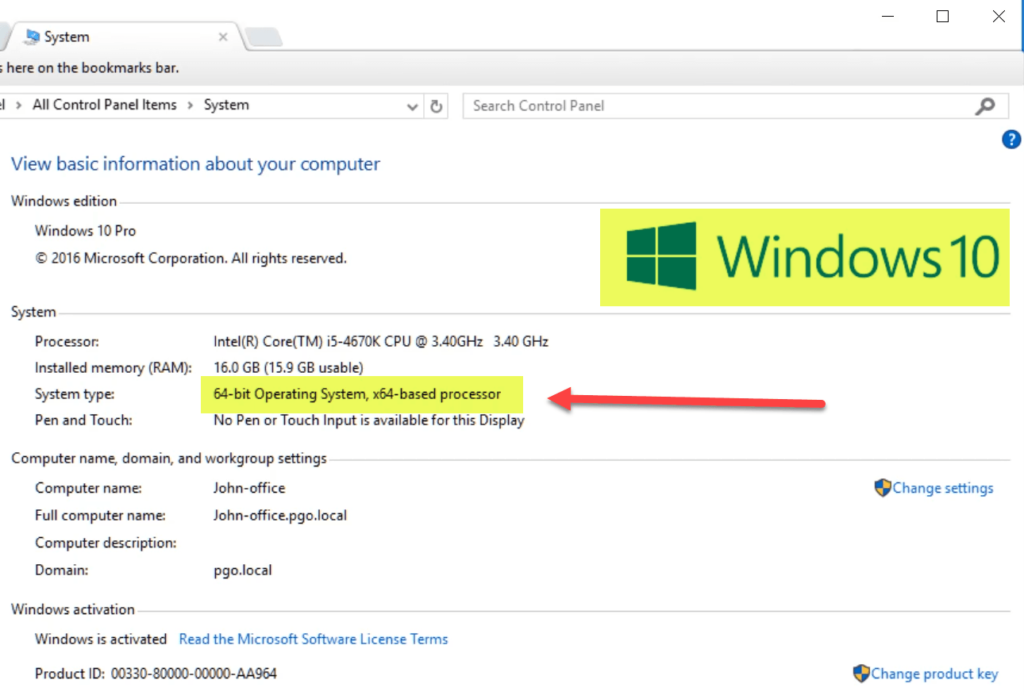
The dialog below will appear and tell you the Properties of you PC.
If this is a 64 bit machine then you can proceed with the installation.

Locating the installation Files
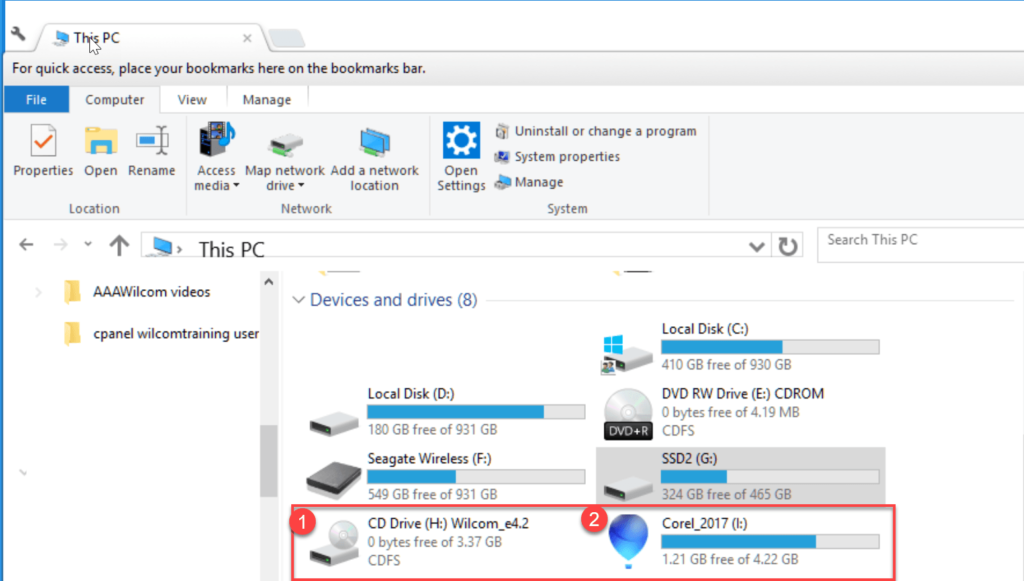
Both Embroidery Studio and CorelDraw installation files are found in separate folders in the USB


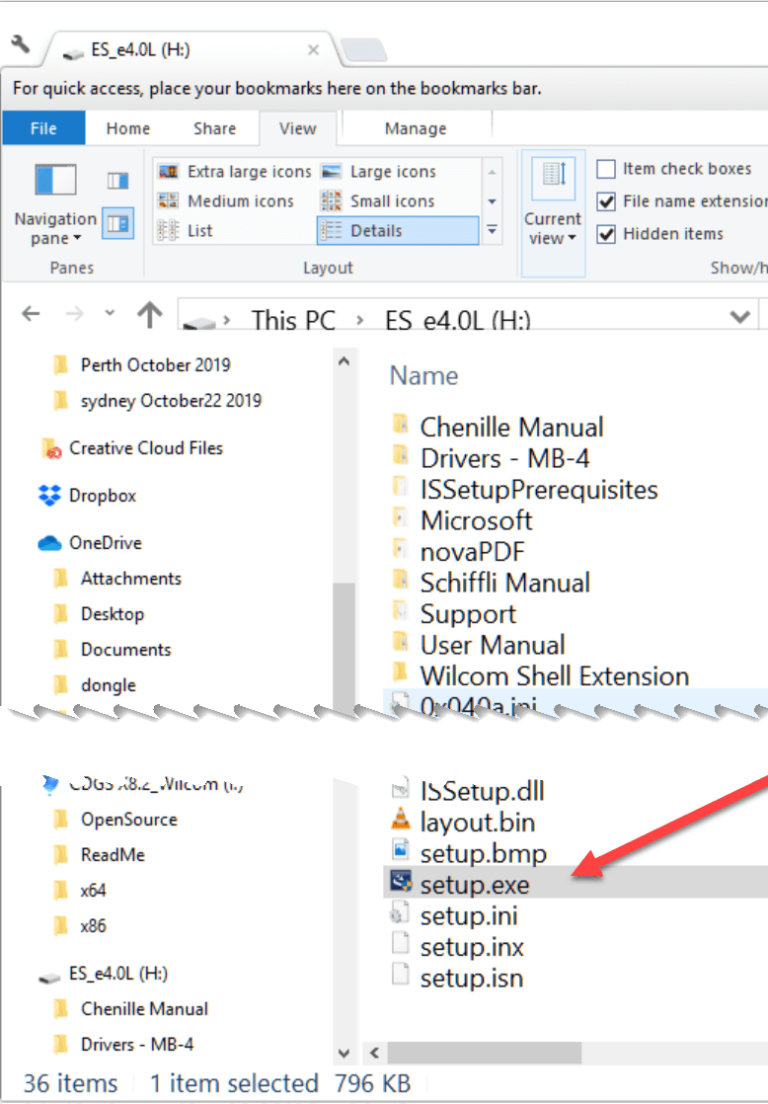
Look for the Setup.exe file in the Wilcom_4.2 folder and double click to install.
Follow the instructions and be patient.
This image shows version 4.0L but could read any version after e.g. 4.2 J


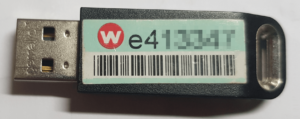
Insert your new security device when asked to do so.
At the conclusion of the installation you will be asked to reboot your computer, on restart allow a few seconds for files to be written to the registry and you will then receive a message to say the installation has been successful.
If a free update is available you will receive a message giving you the opportunity to update the software. You must be connected to the internet and if you answer yes the update will happen automatically for you.
Explore everything StitchFEST has to offer, including inspiring blogs, live demonstrations,
educational content, free giveaways, and exclusive event-only discounts.
Don’t miss your chance to save 20% on EmbroideryStudio 2026 during the event.
Got questions? We’re here to help.
Contact us

Related Articles
Shading and Open Fills
2 minute read
November 11th, 2019
How to cut your digitizing time in half!
1 minute read
October 24th, 2019
Support for Windows 7 is ending
2 minute read
October 21st, 2019