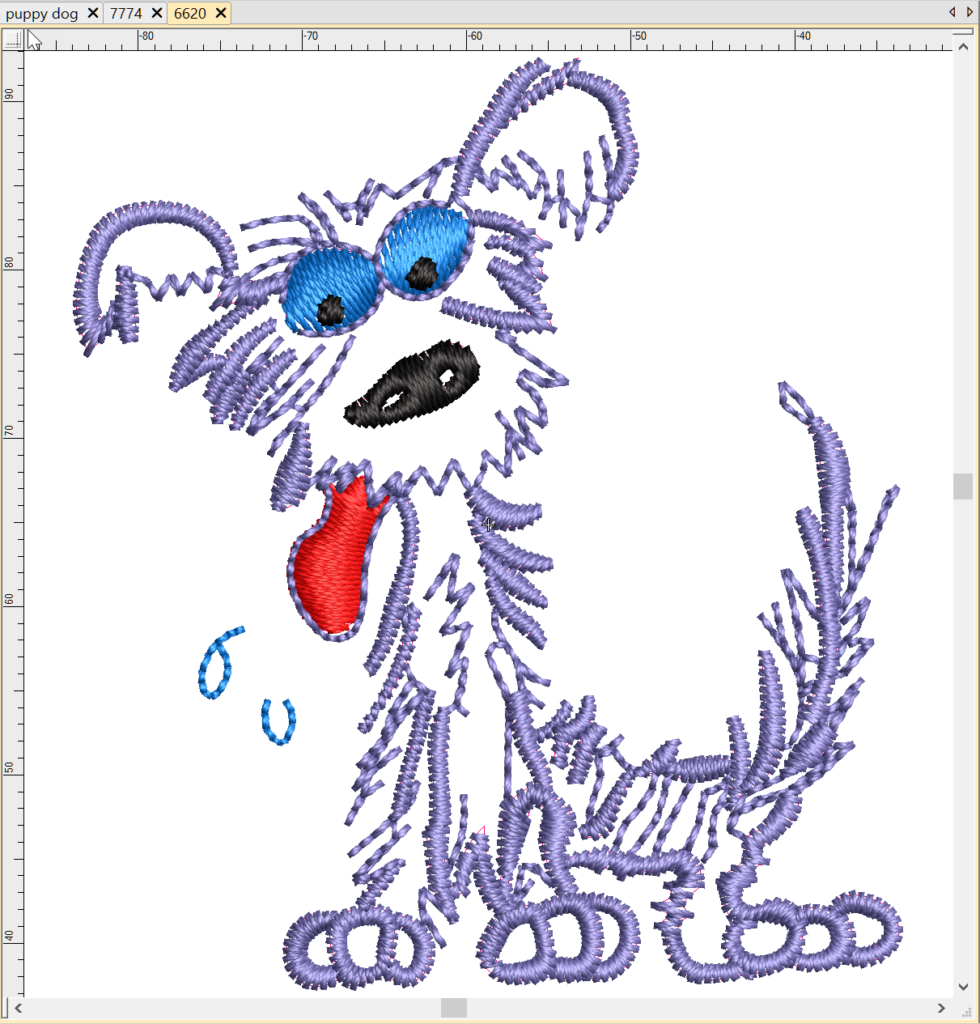



TABS and GROUPS
Blog | EmbroideryStudio | Tips & Tutorials
February 13th, 2020
2 minute read
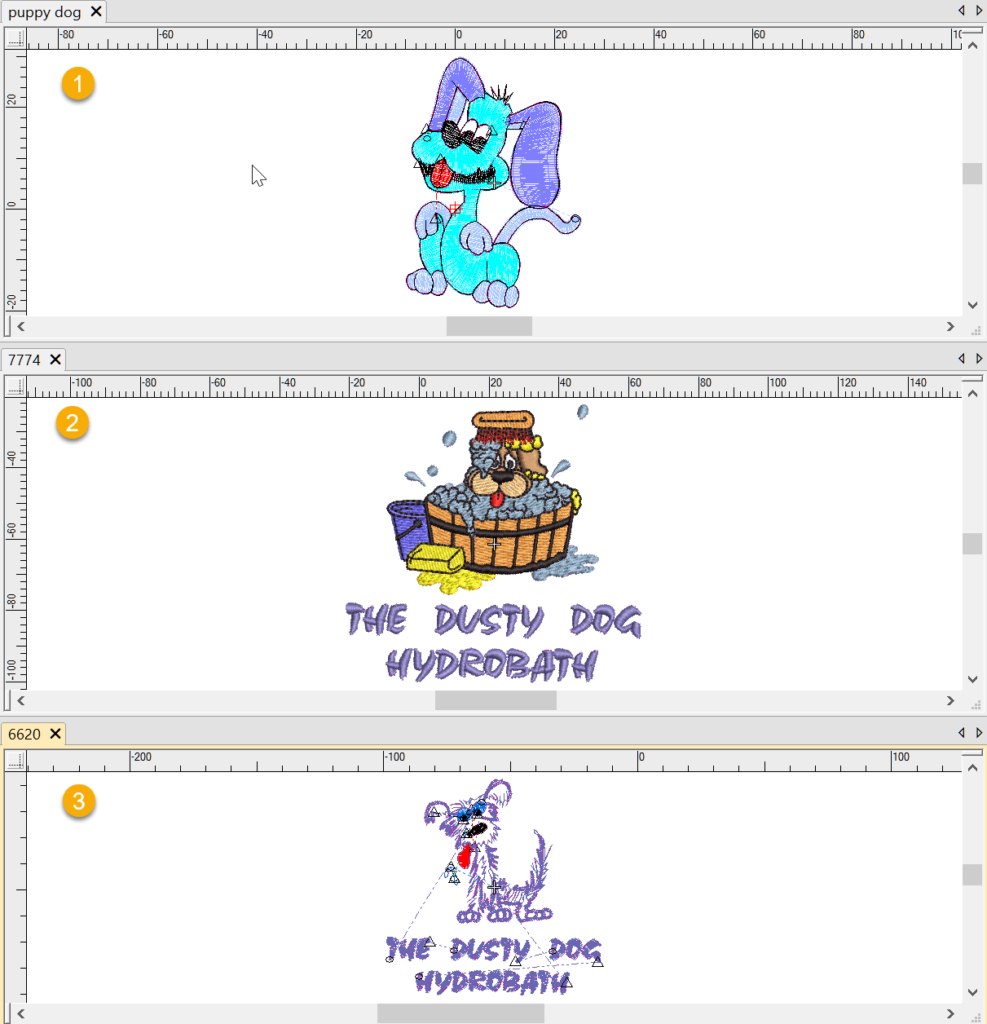
Tabs are a convenient way to switch from one work area to another
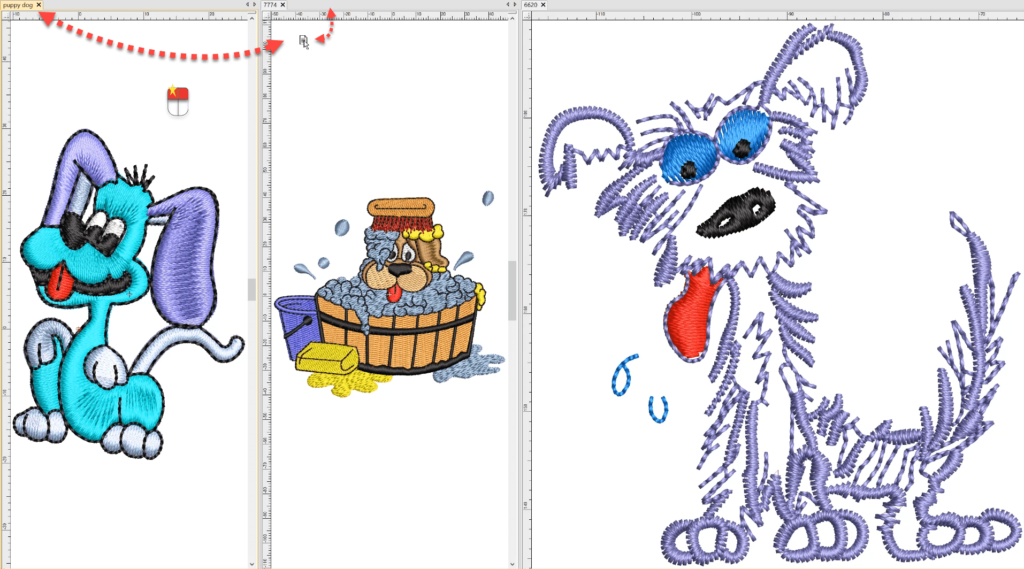
Groups are a convenient way to compare files side by side or above and below each other.
Typically you would do this to view a number of designs at the same time and or select all or part of one design and drag to another.
1 Group 3 Tabs

3 Groups 1 Tab each


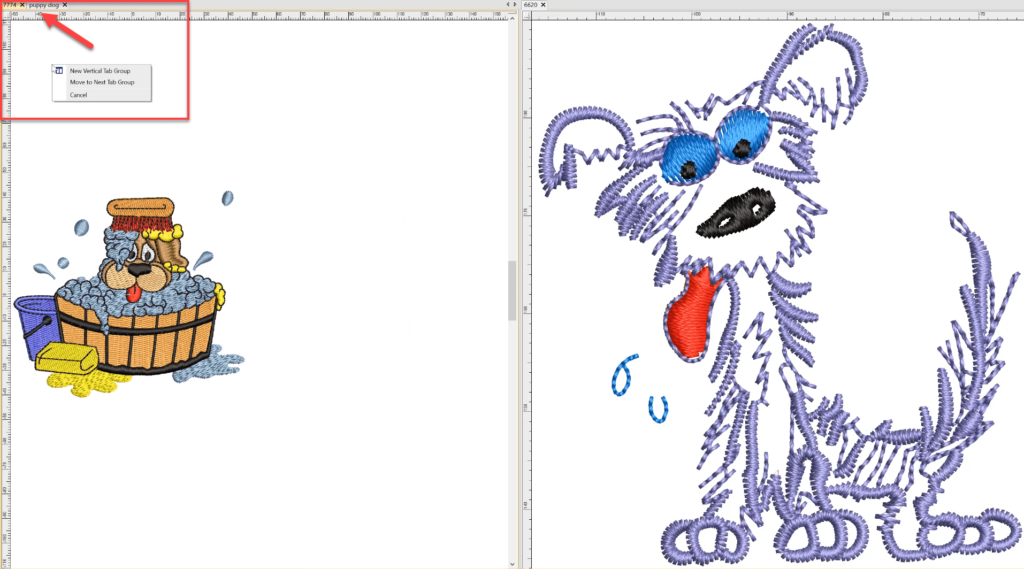
Tabs can be dragged from one group to another and back again.
OR
Drag a tab into the current work area to create a new Group
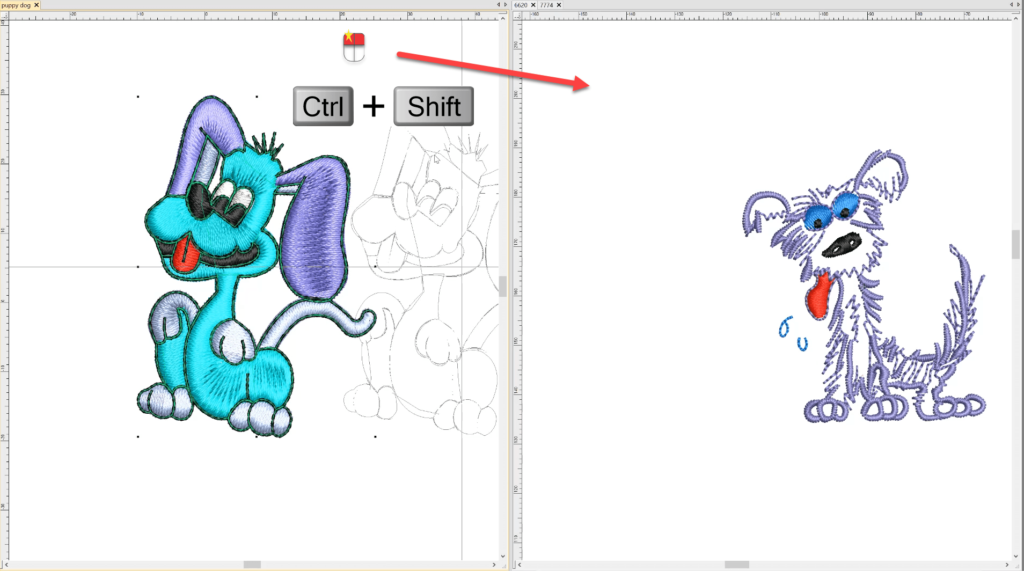
When dragging a design or part of a design from one area to another hold the SHIFT and CTRL key at the same time to COPY rather than MOVE
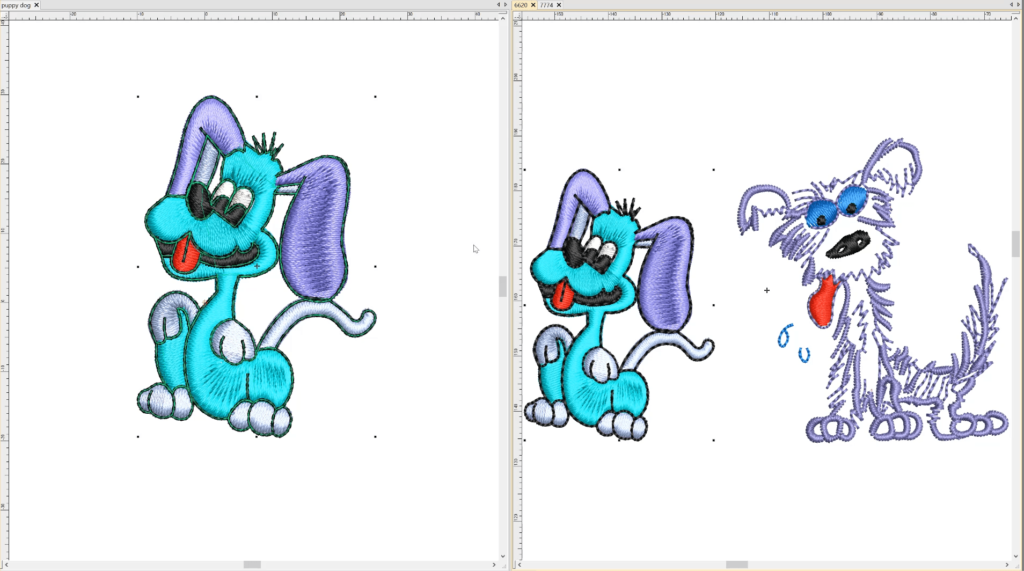
When dragging from one area to another the “dragged” design will land at its original coordinates where it was situated in it’s workspace. So if both designs are located at 0,0 one will sit on top of the other and will have to be dragged to the new location. This is why I suggest you use the CTRL G (Group command to group all objects in a design before it is moved.
Copy to other Workspace

Copied to Workspace

Drag TAB to another GROUP

Result of Drag

Explore everything StitchFEST has to offer, including inspiring blogs, live demonstrations,
educational content, free giveaways, and exclusive event-only discounts.
Don’t miss your chance to save 20% on EmbroideryStudio 2026 during the event.
Got questions? We’re here to help.
Contact us

Related Articles
First raid in Vietnam
2 minute read
February 19th, 2020
Get creative with EmbroideryStudio e4.5
3 minute read
January 30th, 2020
NEW IN 2020 – Wilcom’s EmbroideryConnect WiFi Device
3 minute read
January 10th, 2020